Page Summary
On this page we cover the features and functionality of the JADE View Manager.
JADE View Manager
The JADE View Manager is where we can rename, reorder, delete, and visualize a preview of Views created with the Application Supervisor. The View Manager can be opened from the Application Manager menu option: Application >> Views (Ctrl + V).
Views are arrangements of plugin instance interfaces / panels which can be saved and applied. They are stored within a JADA file and therefore move with, and are associated with, a given application. For this reason, changes to views will require saving the JADA file form the Application Manager.
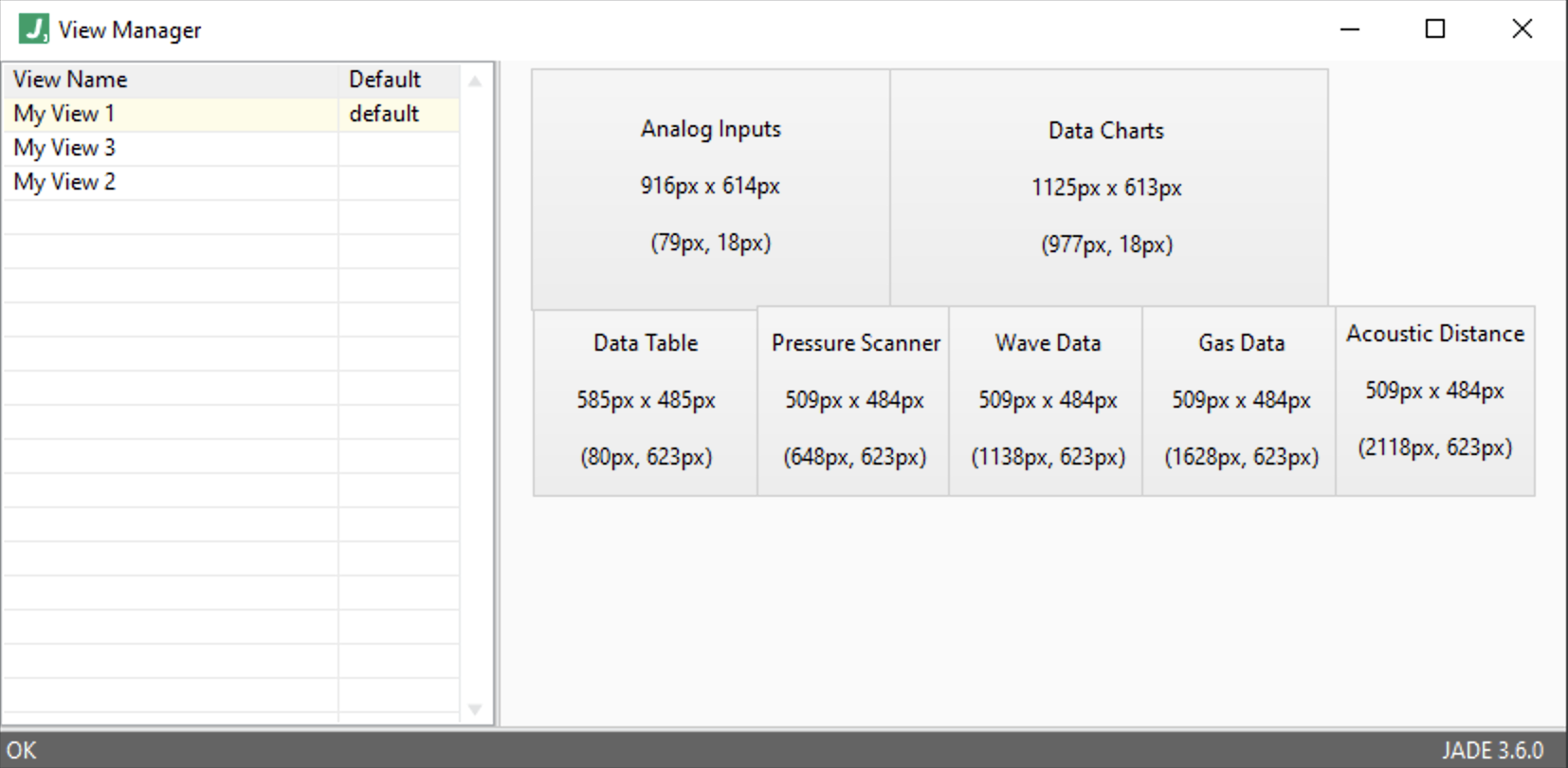
In the example below we see 3 views which would have been created using the Application Supervisor by arranging panels and using the menu option Views >> Save As... there to save a new view (or Views >> Save to save the selected view). See the Application Supervisor platform doc for more information on this.
However, prior to creating any views using the Application Supervisor, the View Manager will appear empty, as shown below. The View Manager does not allow creating views, as that requires arranging panels when running an application.
Right-click Context Menu Options
View management actions are available on views in the View Manager, accessible via a right-click on any row / view:

Let’s break down each menu option below.
Rename...- allows renaming the view (double-clicking will also make the view name editable)Set As Default- sets the view as the default view, which will be applied when the application is launchedDelete- links the targeted plugin instance to the selected plugin (but does not change the plugin instance configuration)
Interface Sections
The View Manager interface consists of 3 sections. The top has two sections: the list of views (left) and the preview of the selected view (right). The bottom section, or footer, shows status and error information, as well as the JADE version. These sections are all resizable to facilitate viewing more information in them when helpful.